
Document translation · iPhone, iPad and Mac
Translate letters and forms without sending them anywhere.
A tax assessment, an insurance decision, a letter from the landlord: the documents you most need to understand are the ones you least want to paste into a website. Sememe translates PDF, Word and Excel files on your iPhone, iPad or Mac and gives you the same file back in your language, laid out as it was. It also reads out what the letter asks of you: the deadline, the amount, the reference to quote. Nothing is uploaded.
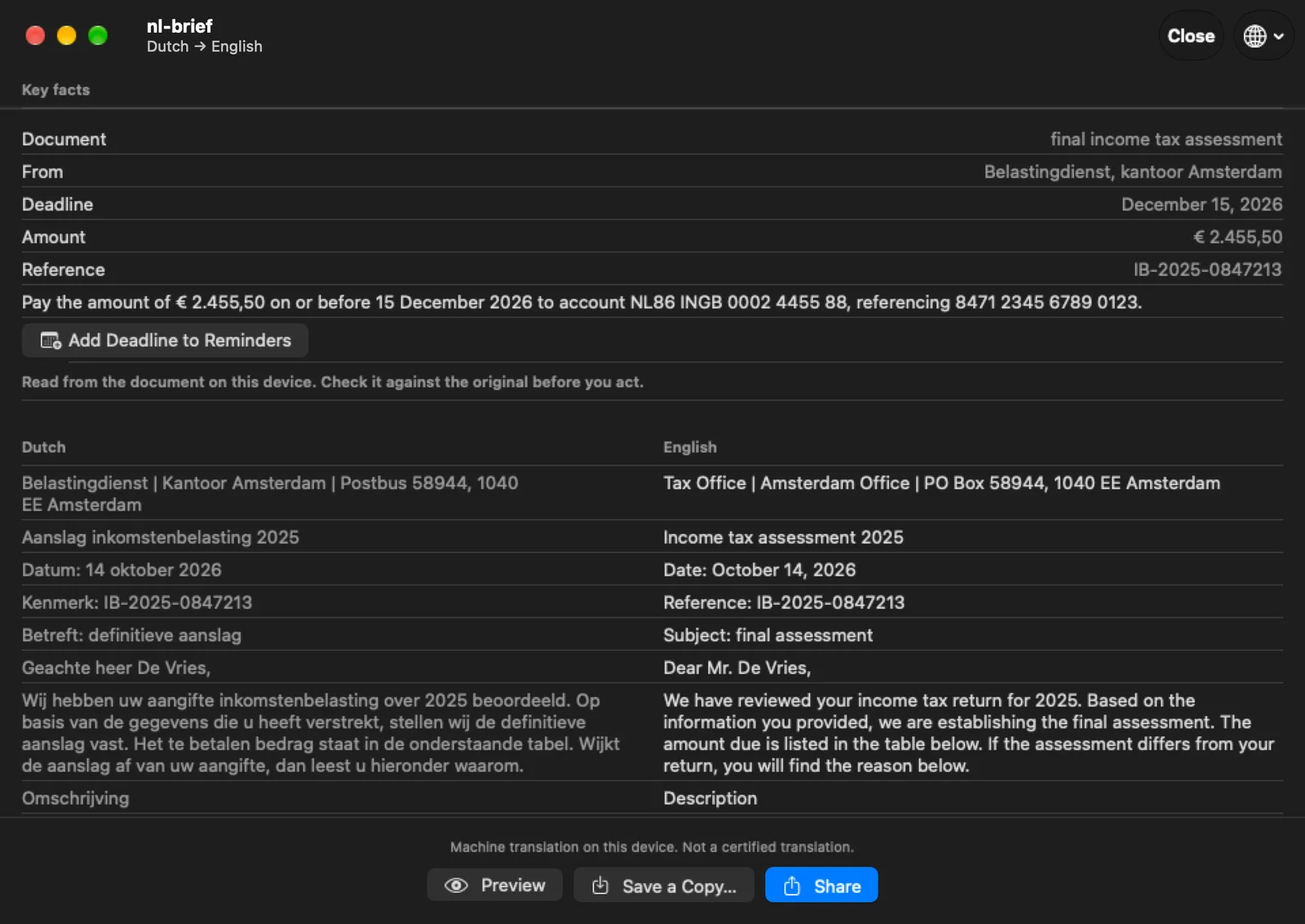
What it translates
The translation comes back in the format it arrived in, so it can be saved, printed, shared or filed like the original. In the app, the original and the translation are shown side by side, so you can see which sentence became which.
- Each block of text is translated and set back in its own place on the page. When a translation runs longer than the original, its type is made smaller to fit, and anything that still doesn’t fit is listed for you to check.
- Word
- The text is translated inside the .docx file: body, headers, footers and notes. Everything else in the file, from styles to images, is copied as it was.
- Excel
- The text in cells is translated. Numbers and formulas are left alone.
- Paper
- On iPhone and iPad, scan a letter with the camera. It is read on the device and comes back as a translated PDF.
- Several at once
- Choose or drop several files and Sememe translates them all. On the Mac, save them all to a folder; on iPhone and iPad, share them all at once.
- Shortcuts
- A Translate Document action takes a file and gives back the translated file, in the background, for your own automations.
Numbers stay as written
Translation models rewrite what they are given, and now and then that includes a digit. On an official letter, the digits are the part you act on. Sememe finds IBANs, amounts, dates written in numbers, reference and case numbers, and names before translating, and passes them through untouched, so the account you pay into is the account on the letter.
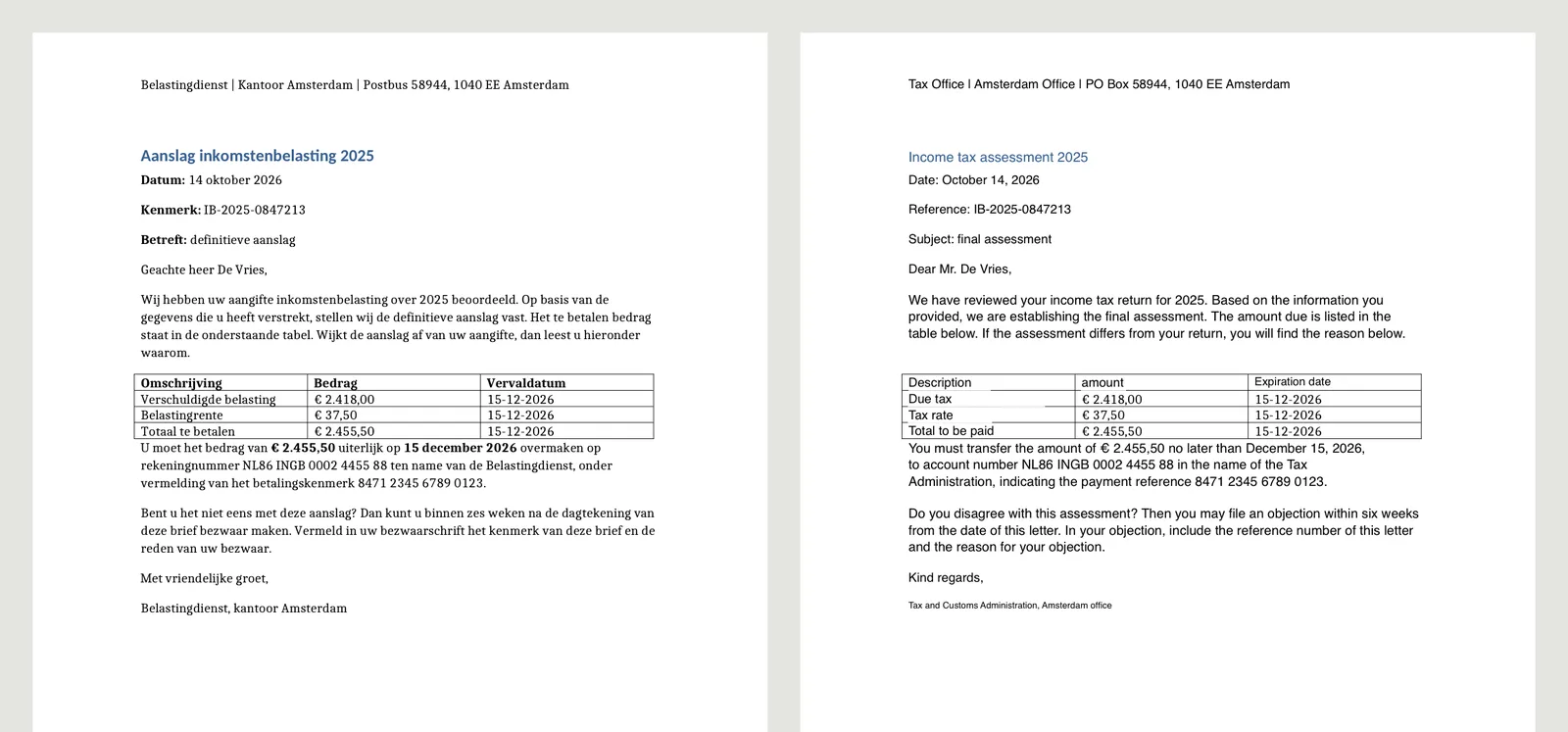
Key facts
A translated letter still has to be read to the end to find out what it wants. With Apple Intelligence, Sememe reads it for you and puts the answer on a card above the translation: what kind of document it is, who sent it, the deadline, the amount, the reference to quote, and one sentence on what to do. The deadline goes into Reminders with one tap.
The card is read on the device by Apple’s own language model and is labelled as such: check it against the original before you act on it. Without Apple Intelligence the card is left out, and everything else works the same.
Stays on your device
Sememe translates with Apple’s on-device models. The system downloads a language pair once, and from then on translating needs no connection at all. Sememe itself has no server to send anything to, no account, no analytics and no crash reports. On the Mac it has no network entitlement either, so the sandbox would refuse a connection whatever the code tried. The App Store handles the Pro purchase in its own process.
On a Mac you can check this yourself. The command prints the app’s entitlements; a network entitlement would show up by name.
codesign -d --entitlements :- /Applications/Sememe.app | grep network
# prints nothing
Languages
Sememe translates between the 25 languages Apple’s on-device translation covers, among them Arabic, Chinese, Dutch, French, German, Hebrew, Hindi, Japanese, Korean, Polish, Spanish, Thai, Turkish, Ukrainian and Vietnamese. It recognises the document’s language by itself, and you can correct it if the guess is wrong. The app is in 17 languages, with a right-to-left interface in Arabic and Hebrew.
Sememe Pro
Your first three documents are free, in full: the translation, the key facts and the saved copy. After that, Sememe Pro translates every document. It is a one-time purchase, US$8.99, for the iPhone, iPad and Mac apps together and shared with your family. No subscription, no credits, no price per page. A document already counted can be translated again, or into another language, for free.
Frequently asked questions
Does Sememe upload my documents?
No. Translation runs on Apple’s on-device models, and the key facts are read on the device too. The Mac app has no network entitlement, so macOS refuses it any connection; the command above lets you check that. The language models themselves are downloaded by the system, once per language pair, not by Sememe.
Is it a certified translation?
No. It is a machine translation, made to help you understand a document, not to replace it. Every translated PDF page and Word file says so in a small line at the foot of the page. Where an authority asks for a sworn or certified translation, you still need a translator.
Which files can it open?
PDF files with a text layer, Word (.docx) and Excel (.xlsx). A PDF that is only a scanned image has no text to translate; on iPhone and iPad, scan the paper with the camera instead and Sememe reads it. Older .doc and .xls files, Pages documents and images are not supported.
Why does it ask me to download a language?
Apple’s translation models are installed per language pair. Sememe asks the system to download a pair the first time you need it, and after that it works offline. You can also add pairs yourself: on iPhone and iPad under Settings › Apps › Translate › Downloaded Languages, on the Mac under System Settings › General › Language & Region › Translation Languages.
Is Sememe free?
Your first three documents are free in full: the translation, the key facts and the saved copy. Sememe Pro is a one-time purchase of US$8.99 (€9.99 in the Netherlands; prices differ by country) that translates every document after that, on iPhone, iPad and Mac, shared with your Family Sharing group. There is no subscription. A document already counted can be translated again, or into another language, without counting twice.
What does it get wrong?
It is machine translation, so wording, and sometimes meaning, can be off; check anything that matters against the original. In PDFs, bold and italic are lost, a block whose translation runs long is set in smaller type, down to 6 pt, and anything that still doesn’t fit is listed as a place to check. Tables are found from the gaps between columns, so an unusual table can come out split differently.
Does the key-facts card need Apple Intelligence?
Yes. It is read by Apple’s on-device language model, so it appears on devices with Apple Intelligence turned on. Without it the card is simply not shown; translating and saving work the same.
Support
Sememe is built and maintained by Quiet Signals Lab in Amsterdam. For bug reports, feature requests or anything else, write to us.
Include your iOS or macOS version, the languages involved and what happened. If you can, attach a document that shows the problem, but only one you are happy to share.